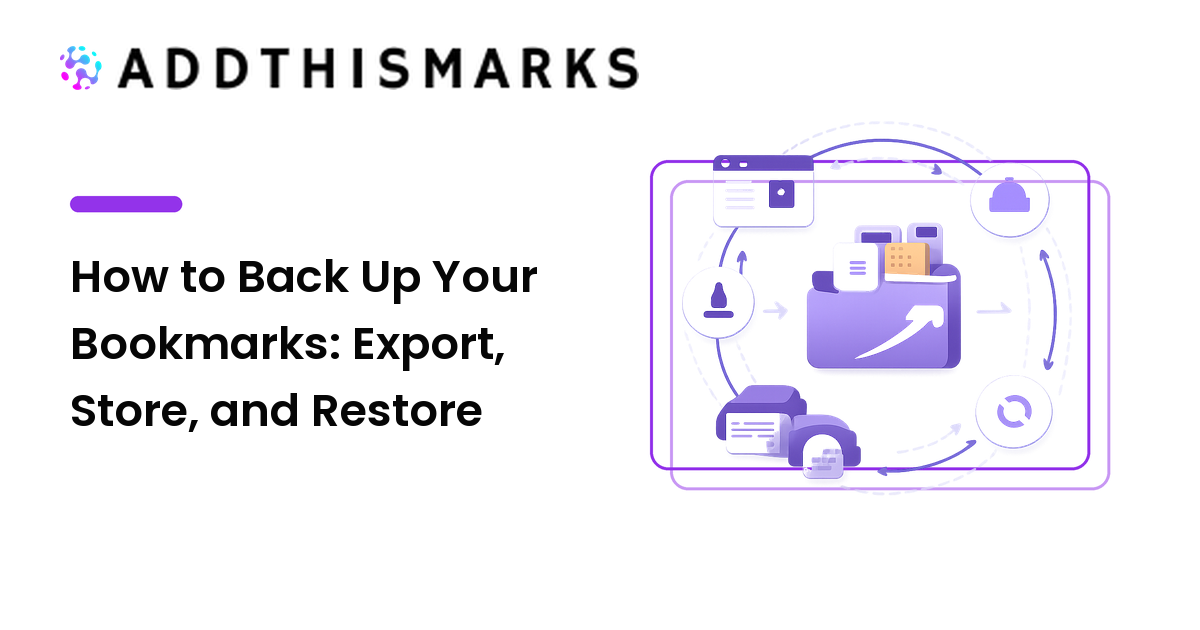
Most people never lose a single bookmark — right up until the day they lose all of them. A new laptop, an operating-system reinstall, a browser profile that won't load, or a sync glitch that quietly deletes a folder, and a collection you built over years is simply gone. The fix is boring, and it works: a backup.
Here's the takeaway up front: the safest backup is an HTML export of your bookmarks, stored somewhere other than the device you use every day, and refreshed on a schedule. Sync is not a backup — it copies your deletions as faithfully as your saves. Below is how to export from any browser, where to keep the copies, how to restore when something breaks, and a routine that takes about five minutes a month.
Sync is not a backup (the mistake that wipes collections)
This is the misunderstanding that costs people their links, so it goes first. Browser account sync — Chrome, Firefox, Edge, or iCloud keeping your devices in step — is built to make every device identical in real time. That is exactly why it can't protect you. Delete a folder on your phone and sync obediently removes it from your laptop seconds later. A corrupted profile or a bad update can propagate the same way, and if you ever lose access to the account itself, you lose the collection with it.
A backup is different in one decisive way: it's a point-in-time copy that nothing overwrites automatically. Last month's export doesn't care what you deleted this morning. So the right mental model isn't sync or backup — it's both, doing different jobs. Sync is for convenience (the same links on every device). A backup is for safety (a copy that survives your mistakes). If you only have sync, you have zero backups, no matter how many devices show the same bookmarks.
The one file format that makes a backup portable
Every major browser can export bookmarks to the same standard: the Netscape Bookmark File, a plain HTML file. Because the format is universal, every major browser and nearly every dedicated bookmark manager can import it. An HTML export isn't tied to the browser that made it, so it survives you switching browsers entirely — the backup you take from Chrome today restores into Firefox, Edge, or a bookmark manager tomorrow.
Browsers also store bookmarks in their own internal files — Chrome keeps a file literally named Bookmarks (JSON, no extension) plus a Bookmarks.bak in its profile folder; Firefox uses places.sqlite and its own JSON backups. These preserve more detail, but they only restore into the same browser, and they're easy to corrupt if copied while the browser is running. Rule of thumb: keep the portable HTML file as your primary backup; treat the internal files as a bonus, not a plan.
How to export your bookmarks from any browser
Exporting takes under a minute. The wording shifts slightly between versions, so look for the phrase "Export bookmarks to HTML" if a menu label has moved.
Chromium browsers (Chrome, Edge, Brave, Opera, Vivaldi):
- Open the Bookmark Manager (Ctrl+Shift+O on Windows and Linux; from the browser menu on Mac).
- Open the three-dot menu at the top of the manager.
- Choose Export bookmarks and save the HTML file.
Firefox:
- Open the Library with Ctrl+Shift+O, or Bookmarks menu → Manage Bookmarks.
- Click Import and Backup.
- Choose Export Bookmarks to HTML for the portable file. Firefox also offers Backup…, which writes a JSON file that restores tags and folder structure — Firefox-only, but worth keeping as a second copy.
Safari (Mac):
- Open the File menu → Export Bookmarks.
- Save the HTML file.
On a phone: mobile browsers usually don't offer HTML export. The practical path is to sync the phone into the desktop version of the same browser, then export from the desktop — or use a bookmark manager app that exports your data directly.
Where and how often to store your backups
An export sitting in your Downloads folder on the same laptop that could die isn't much of a backup. Storage is half the job. Use this checklist:
- [ ] Keep at least two copies, one off your main device — for example a cloud drive plus a local or external copy, or two different clouds. If the machine is stolen or wiped, the backup is somewhere else.
- [ ] Put the date in the filename —
bookmarks-2026-07-02.html. Dated files let you tell versions apart and roll back to before a bad deletion. - [ ] Keep the last few versions, not just the newest — your most recent export may already contain the folder you accidentally deleted. Older copies are your undo button.
- [ ] Store one copy outside your browser's ecosystem — if the browser account is locked or unreachable, an HTML file on a separate drive still opens in anything.
- [ ] Match the frequency to how much you save — monthly for heavy savers, quarterly if you save lightly, and always right before switching browsers, wiping a device, or doing a big cleanup. That last one matters most: a browser switch or a mass delete is exactly when collections vanish.
How to restore bookmarks from a backup
Restoring is just importing the HTML file, with two things to watch for.
- Import the file. In Chromium browsers, open the Bookmark Manager → three-dot menu → Import bookmarks. In Firefox, use Import and Backup → Import Bookmarks from HTML. In Safari, use File → Import From → Bookmarks HTML File.
- Expect a new folder. Imports usually land in a folder named something like "Imported" or "Bookmarks menu" rather than merging into your existing structure, so you may need to drag folders back into place.
- Watch for duplicates. Importing on top of an existing set doesn't de-duplicate. If you're recovering from a partial loss, import into a clean profile or be ready to prune the doubles afterward.
- Verify it actually opens. Expand a folder or two and click a link. A backup you've never tested isn't a backup you can trust.
One honest limit worth understanding: a backup saves your list of links, not the pages themselves. If a saved page has since gone dead, restoring the URL won't bring the content back — that's the slower, separate problem of link rot, and it needs its own habits.
Automating backups (or the closest thing to it)
Browsers don't natively schedule HTML exports, so "automatic" here means removing the part you'll forget — in rough order of reliability:
- A bookmark manager with version history — best if you save a lot, because it keeps rolling copies without you remembering anything. Choose one that lets you export your data back out, so a convenient backup never becomes a lock-in.
- Firefox's automatic backups — Firefox already keeps several recent JSON backups on its own (Import and Backup → Restore lists them). Genuinely useful, but Firefox-only, so still pair it with a periodic HTML export.
- A calendar reminder — the lowest-tech option and the one most people should start with: a recurring monthly task to export and drop the file in your cloud drive. It never silently fails.
- Copying the profile file (advanced) — you can include Chrome's
Bookmarksfile or a Firefox profile in a whole-system backup. It restores only into the same browser and only when copied while that browser is closed, so treat it as a supplement to the portable export, never the whole plan.
FAQ
How do I back up my bookmarks?
Export them to an HTML file from your browser's bookmark manager, then store a copy somewhere other than your main device — a cloud drive or an external drive. That one exported file is a complete, portable backup you can import into any browser or bookmark manager later.
Is browser sync the same as a backup?
No. Sync keeps your devices identical, which means it also copies your deletions and corruption everywhere within seconds. A backup is a point-in-time copy that sync can't overwrite. Use sync for convenience and a separate export for safety.
How do I export my bookmarks to a file?
In Chromium browsers (Chrome, Edge, Brave), open the Bookmark Manager, use the three-dot menu, and choose "Export bookmarks." In Firefox, go to Manage Bookmarks → Import and Backup → Export Bookmarks to HTML. In Safari, use File → Export Bookmarks. Each saves a standard HTML file.
Where should I keep my bookmark backups?
In at least two places, with one off your main device, and with the date in the filename. Keep the last few versions rather than only the newest, since the latest export may already include a folder you deleted by accident.
How do I restore my bookmarks after losing them?
Import the HTML file through your browser's bookmark manager. Expect the links to arrive in a new folder rather than merging, and expect possible duplicates if you import on top of an existing set — so restore into a clean profile when recovering from a real loss, then tidy up.
How often should I back up my bookmarks?
Monthly if you save a lot of links, quarterly if you save lightly, and always right before switching browsers, resetting a device, or doing a big cleanup — the moments when collections most often disappear.
Next step
A bookmark backup is the cheapest insurance you'll ever buy for something you use every day. The whole routine fits in five minutes a month: export to HTML from your main browser, store two dated copies with one off-device, keep the last few versions, and test a restore once so you know the file works. Do the first export today, before the day you wish you had. Build a collection worth protecting — and keep it safe everywhere — at AddThisMarks.